Skip to content
Contact Us
Start a Project info@nexlavision.com
NexlaMeet
AI meeting assistant · Project memoryIn development

The AI meeting assistant that remembers your project

NexlaMeet listens to your meeting on Windows, transcribes it as it happens and suggests answers taken from your own project documents, with the source cited. Afterwards it keeps the summary, the decisions you confirm and a searchable memory of the project, so the next meeting starts from what was actually agreed.

What happens next: we reply by e-mail from info@nexlavision.com within one business day to arrange your NexlaMeet demo. Prefer to talk? Call +92 321 4184187.

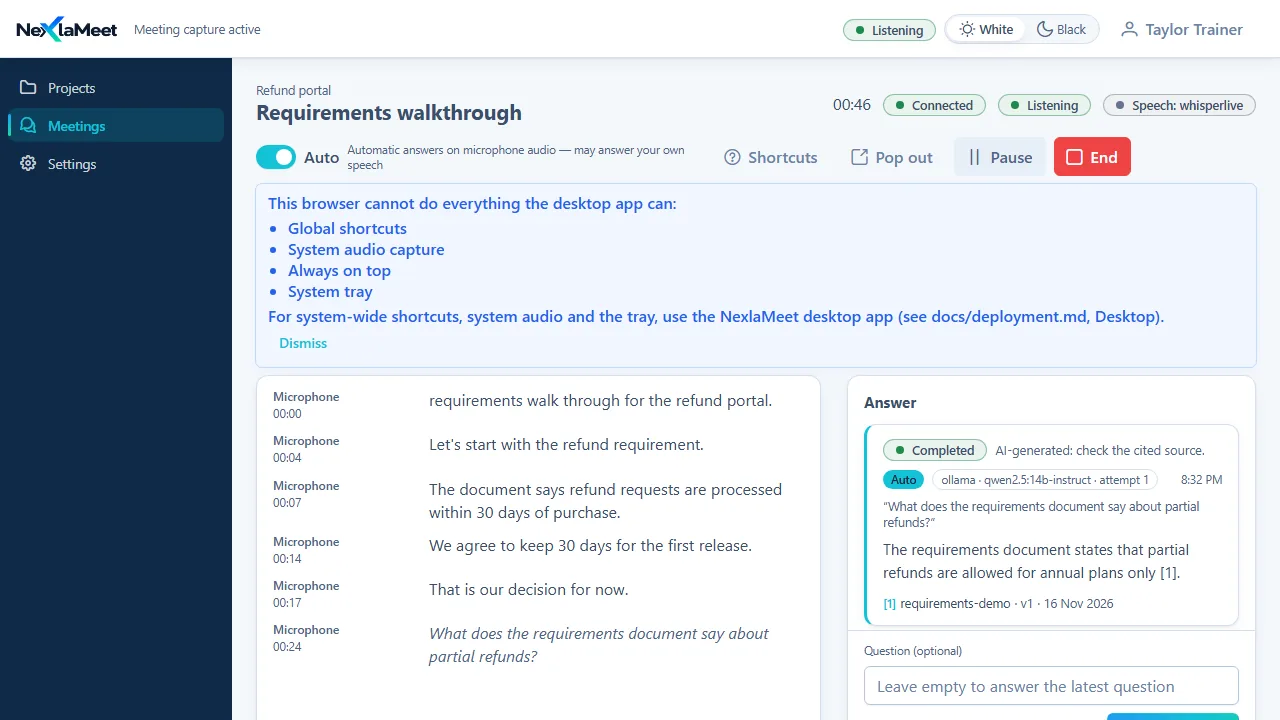
NexlaMeet during a live meeting: the transcript on the left and a suggested answer on the right, citing the requirements document it was taken from
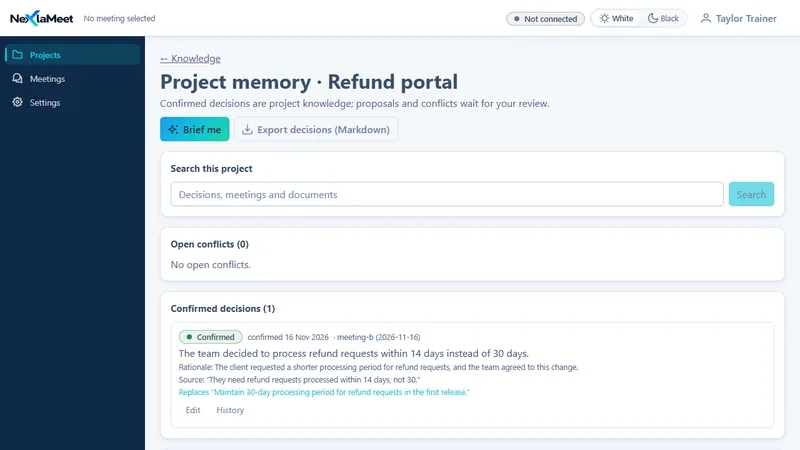
NexlaMeet project memory showing a confirmed decision, its rationale, its source quote and the earlier decision it replaces
Real screens · sample project
Live transcriptYour microphone and the system audio, written down as the meeting runs.As it happens
Cited answersSuggestions come from your project's documents and name their source.Grounded
Confirmed decisionsA proposal becomes project knowledge only when a person confirms it.Your call
Your choice of AIA hosted provider, or local models with nothing leaving your machines.Under your control
Inside NexlaMeet

During the meeting, around it and after it

Three screens carry most of the work: the live meeting, the project's knowledge, and the meeting record with its summary and decisions.

01Live meeting. The transcript builds line by line. When a question is asked, an answer appears beside it with the document it came from. Automatic answers can be switched off, and Answer now asks on demand.
Live meeting screen in the browser build of NexlaMeet with a timed transcript, an automatic answer about partial refunds and its citation of the requirements document
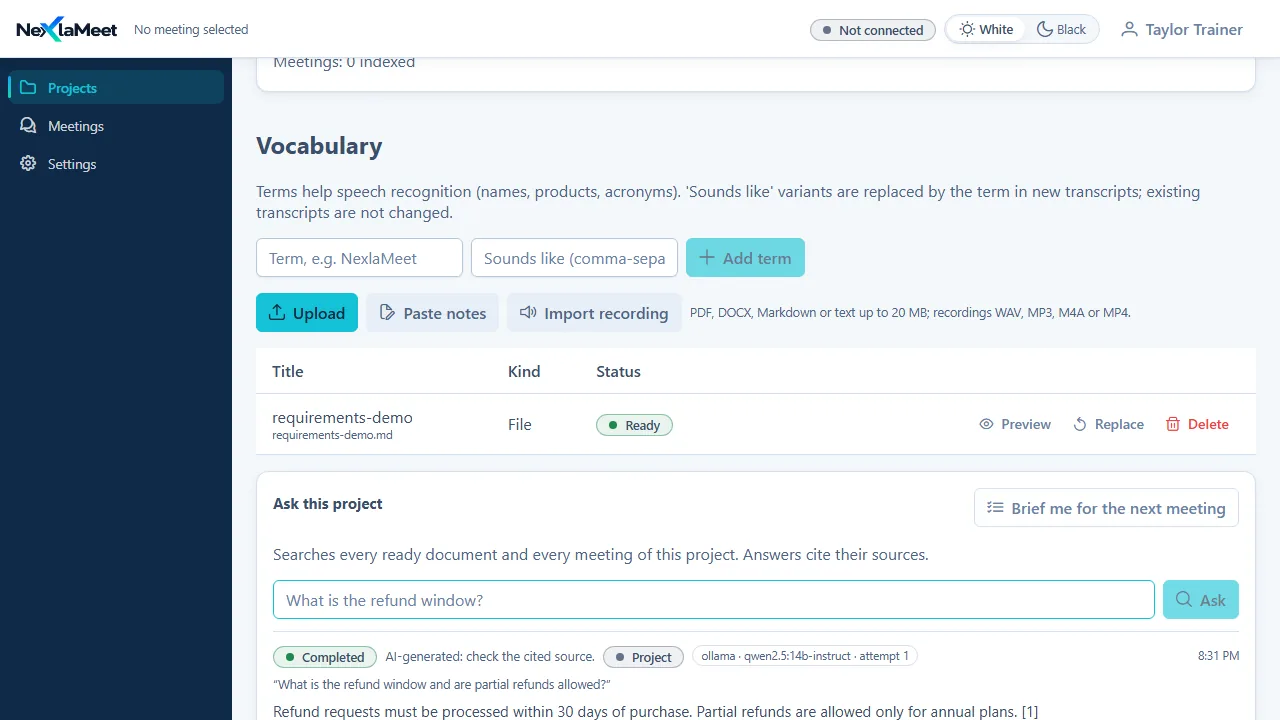
02Project knowledge. Upload the requirements, the architecture notes, the contract. Add vocabulary so names and acronyms are recognised. Ask the project a question and the answer cites its sources.
NexlaMeet knowledge page with vocabulary terms, an uploaded requirements document marked ready, and the Ask this project box with a cited answer
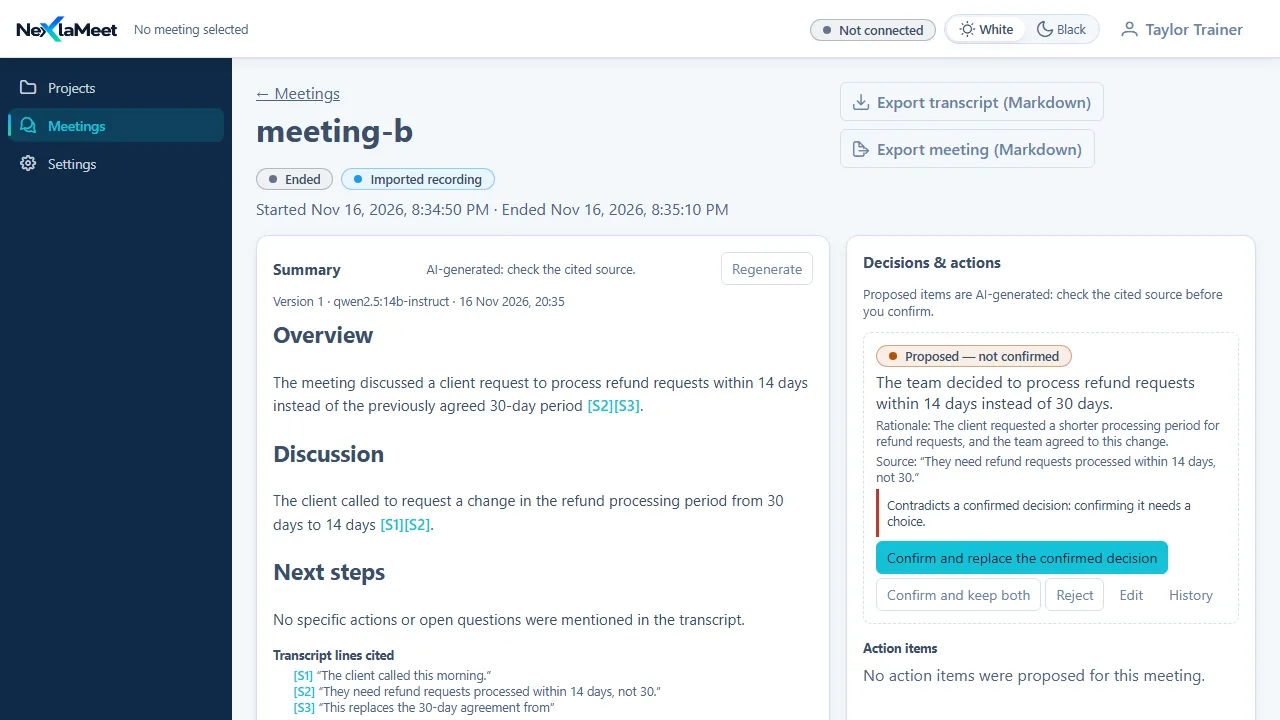
03Summary and decisions. After the meeting: an overview with the transcript lines it rests on, and proposed decisions waiting for you. One that contradicts a confirmed decision says so and asks you to choose.
NexlaMeet meeting record with a cited summary and a proposed decision flagged as contradicting a confirmed decision, with the choices to replace it, keep both or reject

Real screens of the product, recorded with a sample project

What it does

Meeting assistance that knows the project

Answering questions across past meetings is no longer unusual. What NexlaMeet is built to get right is the state of a project's knowledge: what was only proposed, what was confirmed, and what was later replaced.

In the meeting

Live transcription of both sides

The desktop app captures your microphone and the system audio, so what you say and what comes out of the call are both transcribed, each line with its time. Speech recognition runs on a local engine by default. Pause and resume when you need to, and add vocabulary so product names and acronyms come out right.

Answers with their source

Questions from the other side can be answered automatically, or you press Answer now. The answer streams in beside the transcript and cites the document or the earlier meeting it used. Choose whether it looks at this meeting or the whole project.

After the meeting

Summaries you can check

Each summary has an overview, the discussion and next steps, and each point refers to the transcript lines behind it. Regenerate it, correct a transcript line with its history kept, and export the meeting or the transcript as Markdown.

Decisions a person confirms

NexlaMeet proposes the decisions and action items it heard, each with its rationale and the sentence it came from. Nothing becomes project knowledge until you confirm it. You can edit or reject a proposal first.

Conflicts are flagged

When a new proposal contradicts something already confirmed, it is marked and you decide: replace the earlier decision, keep both, or reject the new one. A replaced decision stays on record with what replaced it.

Across the project

Documents and recordings in one index

Upload PDF, Word, Markdown or text files, paste notes, or import a recording of a meeting you could not capture live. Documents and meetings of a project are searched together, and each project keeps its own index.

Project memory and a briefing before the next call

The memory page lists confirmed decisions, open conflicts and proposals waiting for review, and searches decisions, meetings and documents together. Brief me gives you the open decisions, commitments, unresolved questions and the last summary before you join the next meeting. Decisions export as Markdown.

Interview practice

A separate meeting type for rehearsing an interview: add your CV, the job description and example answers, and practise with the microphone only. If your materials do not cover a question, the answer says so instead of inventing experience. Where it is offered depends on the plan.


Why it is kept

Proposed, confirmed and replaced

Most of what is said in a meeting is discussion. A few sentences are decisions, and some of those are overturned three weeks later. NexlaMeet keeps those states apart so an answer can tell you what the team agreed and whether it still stands.

  • Before a recurring call. The briefing shows previous decisions, commitments and open questions, so preparation takes minutes.
  • When someone asks why. The decision, its rationale and the meeting it came from are retrieved together.
  • When a requirement changes. The earlier agreement is shown beside the proposed change before you confirm it.
  • When someone joins the project. The history is in the meetings and documents, with sources, not in one person's memory.
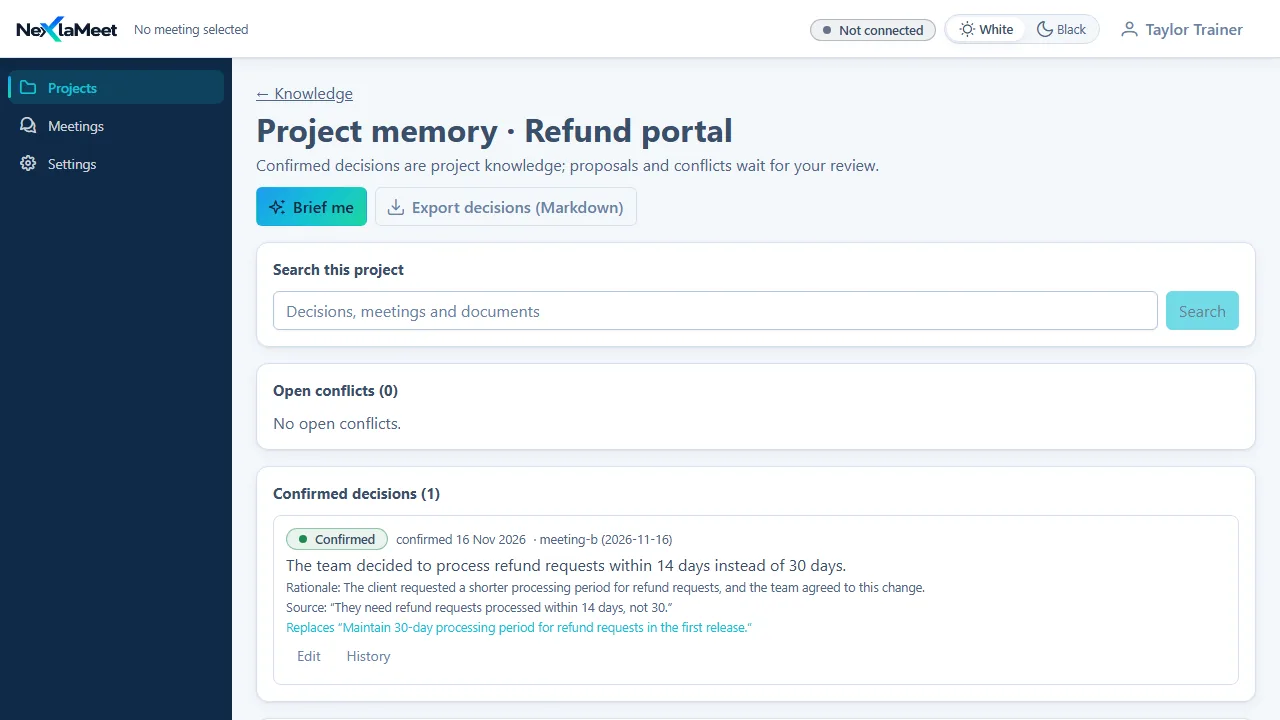
Project memory page in NexlaMeet with the Brief me button, project search, no open conflicts and one confirmed decision that replaces an earlier 30-day agreement
Project memory. A confirmed decision with its rationale and source quote, and a link to the decision it replaced.
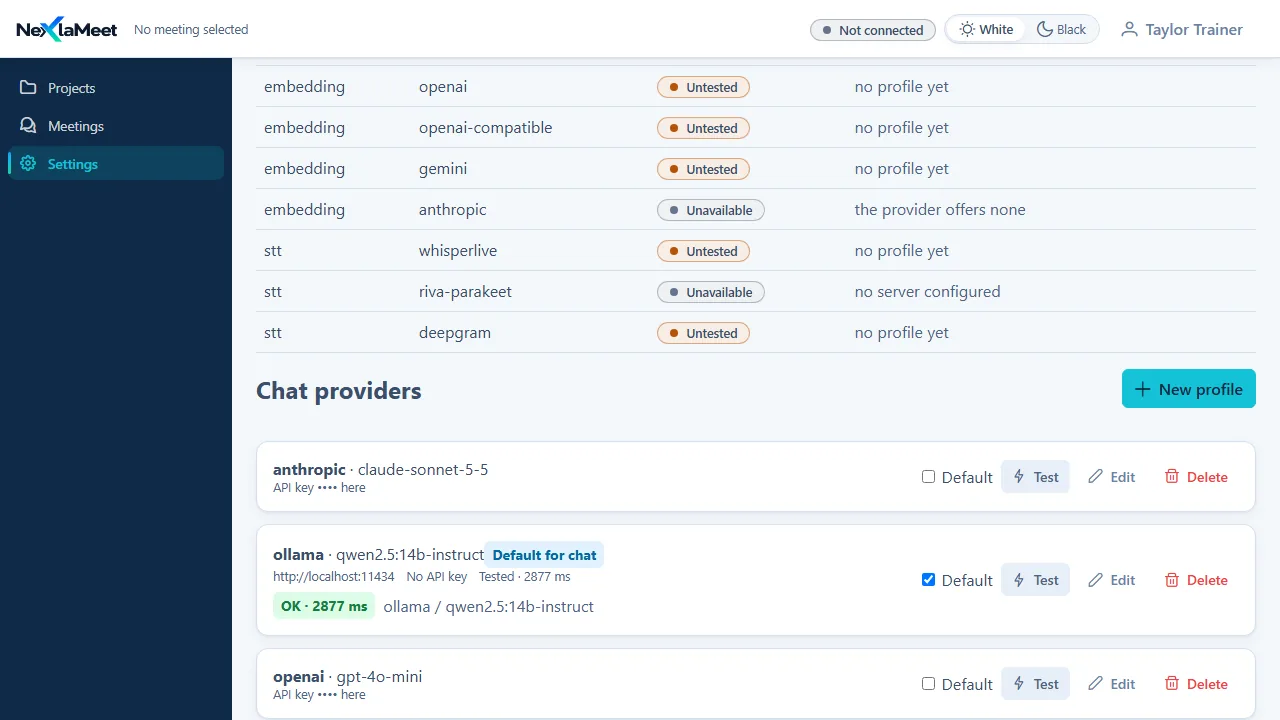
NexlaMeet settings listing chat provider profiles for Anthropic, a local Ollama model marked as the default and tested, and OpenAI, with API keys masked
Settings, providers. One profile per provider, a Test button for each, and a default for chat. Keys are stored masked.
AI providers

Your choice of model, including fully local

NexlaMeet is not tied to one AI company. You add a profile for each provider you want to use and pick the default. Speech recognition, the model that answers and the model that indexes documents are chosen separately.

  • Hosted providers. Profiles for OpenAI, Anthropic, Gemini and OpenAI-compatible endpoints, each with your own key.
  • Local models. Answers from a model running through Ollama and speech recognition on a local engine. In local-only operation nothing is sent to an outside service; we measured that on a running system.
  • Visible usage. Settings shows the tokens used today per provider and how long meetings, documents and replay data are kept.
  • Read access for other tools. An access token lets an MCP client read your projects. It is read-only and can be revoked.
Windows desktop app

Built for the desktop, with consent before capture

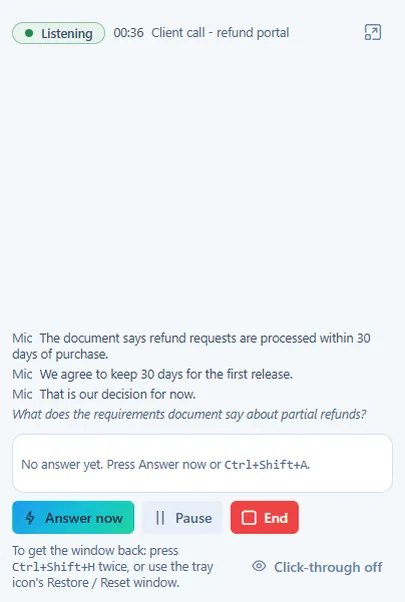
The desktop app is the full product: system audio, shortcuts that work while another application has focus, a tray icon and a small window that stays on top of the call. Hiding the window does not stop the capture; pausing and ending are separate, deliberate actions.

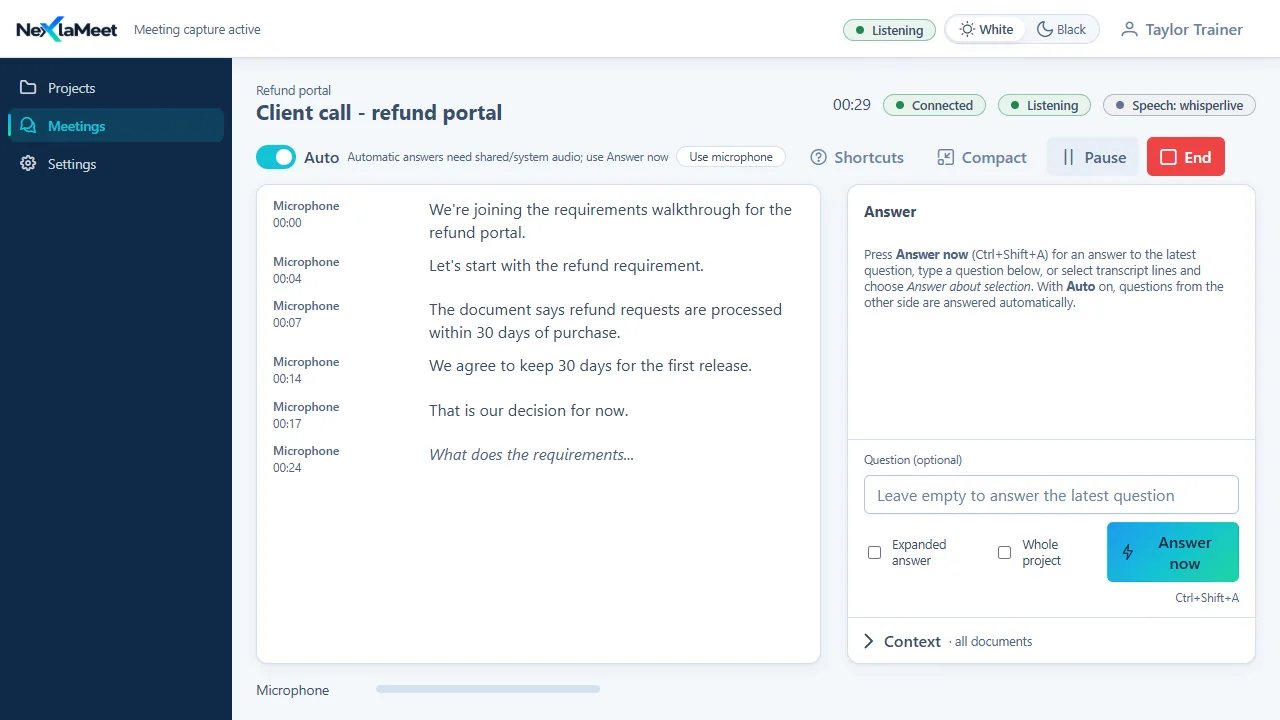
NexlaMeet desktop app during a client call with the live transcript, the Answer now button with its Ctrl+Shift+A shortcut, and Compact, Pause and End controls
The desktop app in a call. Transcript on the left, Answer now with its shortcut on the right, and the Compact, Pause and End controls.
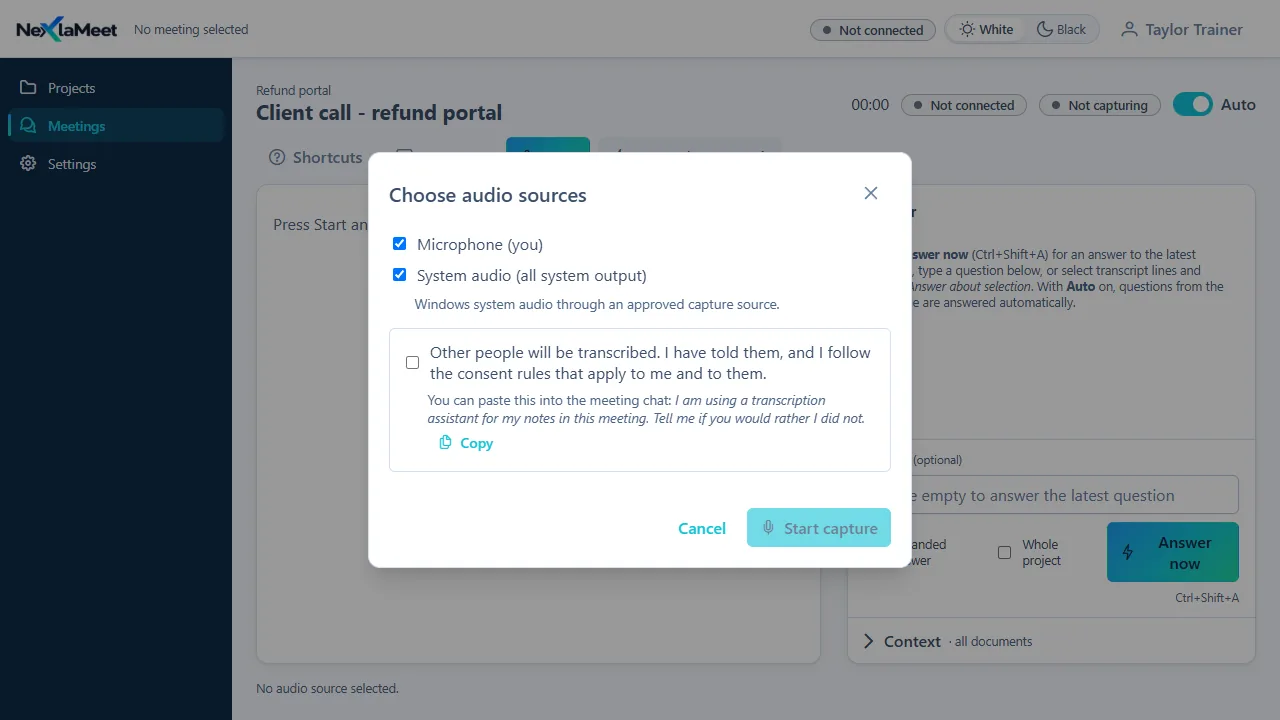
Choose audio sources dialog in NexlaMeet with microphone and system audio ticked, a required consent tick stating that other people have been told, and a sentence to paste into the meeting chat
Consent step. Capture cannot start until you confirm the other people have been told. A sentence to paste into the meeting chat is provided; nothing is posted for you.

What the browser build leaves out

NexlaMeet also runs in a browser for people who cannot install software. A browser cannot do everything a desktop application can, and the app says so on screen rather than failing quietly.

  • Microphone only. A browser cannot capture the computer's whole audio output; sharing a tab with its audio is the nearest alternative.
  • No system-wide shortcuts. The shortcuts work only while the page has focus.
  • No always-on-top window or tray icon. A picture-in-picture pop-out is available instead.
NexlaMeet compact window showing the last transcript lines, the Answer now, Pause and End buttons and the click-through switch
Compact window. A small always-on-top view for use beside the call.
Teams and administration

Organisations, plans and seats

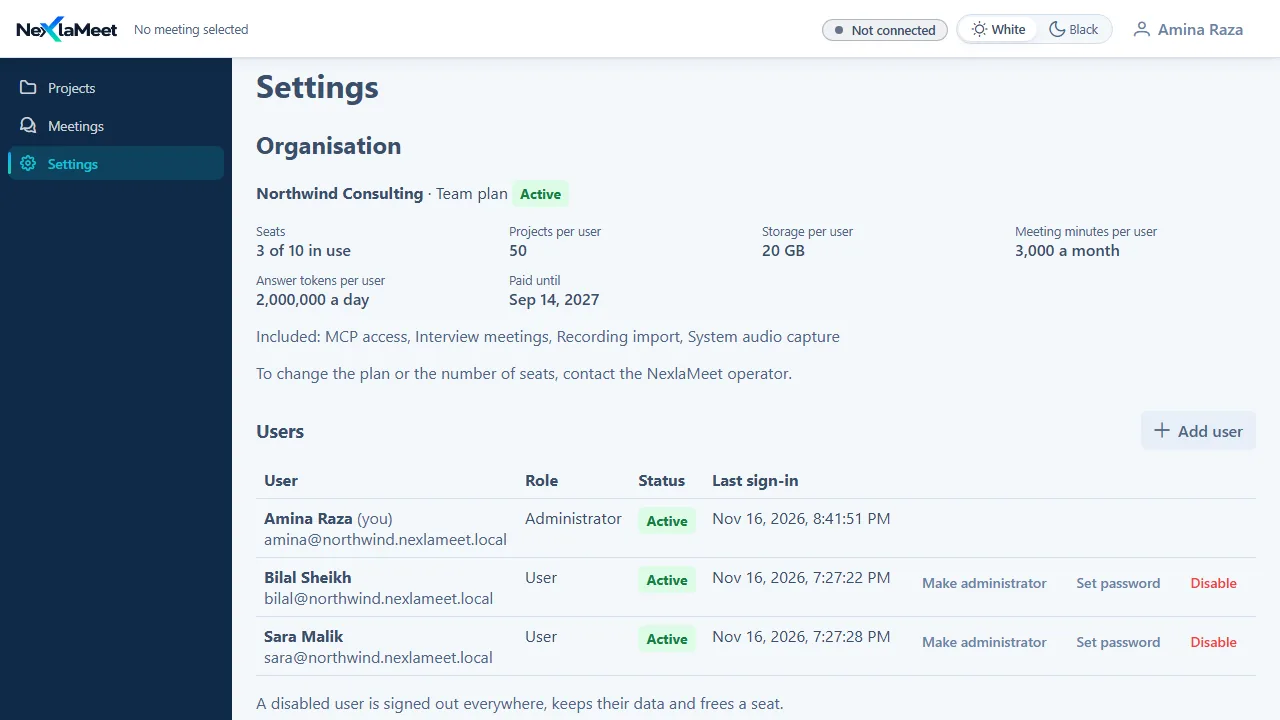
Each customer is an organisation with its own users and one subscription. A plan sets the seats, the projects, storage and meeting minutes per user and which features are included, and the application enforces those limits.

  • For the administrator. Settings shows the plan, seats in use and limits, and lets the administrator add users, change roles, set a password and disable an account.
  • For the operator. A separate console manages organisations, plans and subscriptions, records payments received and can suspend or reactivate an organisation.
  • Nothing lost on a lapse. When a subscription is inactive, new captures and answers stop, while reading, exporting and deleting your data keep working.
  • Each owner's data is separate. Projects, meetings and documents belong to the signed-in user who created them.

Plan names and limits in the screenshot are sample values. Prices are not published yet.

Organisation settings in NexlaMeet for a sample organisation, showing its plan, seats in use, per-user limits, included features and a user list with roles, using sample data
Settings, organisation. Plan, seats, limits and users, shown with a sample organisation and sample people.
Where it stands today

What is built, and what is not yet

NexlaMeet is in development. It runs end to end on our own systems and we demonstrate it on request. It is not on general sale.

Built and running

  • Live capture and transcription in the Windows desktop app
  • Automatic and on-demand answers with citations
  • Document upload, recording import and project questions
  • Summaries, proposed and confirmed decisions, conflict handling
  • Project memory, search, briefing and Markdown export
  • Interview practice
  • Local-only operation with local models
  • Organisations, plans, seats and the operator console

Limited

  • The browser build: microphone only, no system-wide shortcuts, no always-on-top window
  • Anthropic and Gemini connections are built but not yet run through our test gate with live accounts
  • Answer quality depends on the model you choose; larger models handle replaced decisions more reliably than small ones
  • Payments are recorded by the operator; there is no online checkout
  • The consent wording and the legal texts are drafts awaiting legal review

Not available yet

  • A signed installer with automatic updates
  • Published plans and prices
  • Email verification and self-service account deletion
  • Calendar integration
  • Integrations with meeting platforms
  • Mobile apps
Who it is for

Teams whose projects live in recurring meetings

Software consultants

Client calls every week, and a record of what the client agreed to that you can point at when scope is questioned.

Technical leads

Architecture and requirement discussions where the reason behind a choice matters months later.

Small development agencies

Several projects in parallel, each with its own documents, meetings and decisions kept apart.

FAQ

NexlaMeet, answered

A meeting assistant for Windows that listens to a meeting, transcribes it live, suggests answers drawn from your own project documents with the source cited, and afterwards keeps the summary, the decisions you confirm and a searchable memory of the project.

A note-taker records what was said. NexlaMeet also keeps track of what was decided: a proposal stays a proposal until a person confirms it, a later decision that contradicts an earlier one is flagged, and the replaced decision stays on record with what replaced it.

From the documents and meetings of the project the meeting belongs to. Each answer cites the document or transcript line it used, and every answer, summary and proposed decision is labelled as AI-generated so you check the source before relying on it.

That depends on the providers you choose. Speech recognition runs on a local engine by default, and with a local model for answers NexlaMeet can run with no data leaving your own machines. If you select a hosted provider such as OpenAI, Anthropic or Gemini, the text sent for an answer goes to that provider.

You add a profile per provider in Settings: OpenAI, Anthropic, Gemini, an OpenAI-compatible endpoint, or a local model through Ollama. Our own test runs use local models and OpenAI; the Anthropic and Gemini connections are built but have not yet been through our test gate with live accounts.

No. It runs on your computer and listens to your microphone and, in the desktop app, to the system audio. It does not join a call as a participant and has no integration with a meeting platform. Before any capture starts you confirm that the other people have been told.

There is a browser build with fewer capabilities: microphone only, no system audio, no system-wide shortcuts and no always-on-top window. There are no mobile apps.

Not yet. NexlaMeet is in development and not on general sale, and we have not published prices. We give demos and are looking for early users with recurring project meetings; contact us to arrange one.

See it on one of your own projects

Bring a requirements document and a question your client keeps asking. We will load the document, run a short meeting and show you the answer with its source, the summary and the decision waiting for your confirmation.

What happens next: we reply by e-mail from info@nexlavision.com within one business day to arrange your NexlaMeet demo. Prefer to talk? Call +92 321 4184187.

Free consultation

Free Consultation Available

Looking for an AI meeting assistant for your team?

Leave your name and number and tell us which product you are looking at. We will call or message you to understand what you need and prepare a quote.

Include the country code, for example +92 300 1234567

or

  • No obligation
  • English and Arabic
  • Six products